How to Add Favorite Channels On Firestick
Using your Fios TV remote control, select:
- Menu > Settings > System > Fav
orite Channels > Favorite 1 or Favorite 2 > Add/Remove > Follow the prompts
You’re ready to start watching one of your favorite channels. To access:
- Press the heart
button, your list will pop-up
- Use the arrow buttons, select your channel
- Press OK and start watching your favorite show
- Press the Home button on the remote to get to the Home screen.
- Navigate to the Apps & Channels button then press the Select/Center button.
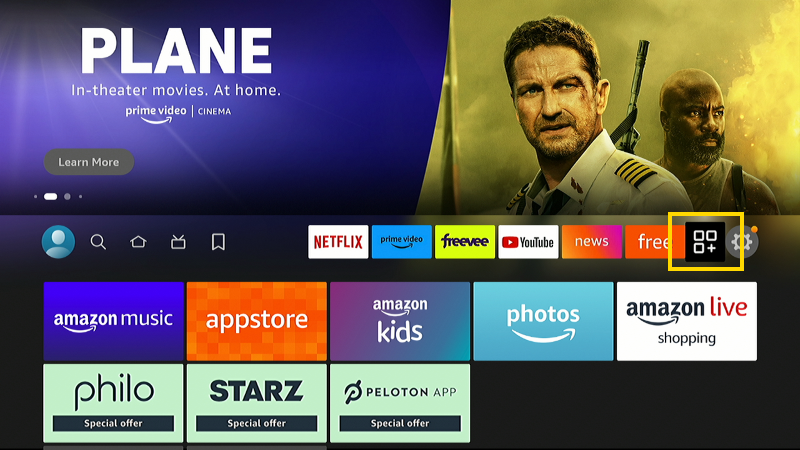
- Use the directional pad on the remote to highlight the app you wish to add as a favorite. Do not open the app/channel. Just highlight it.
- Press the ☰ button on the remote. A menu will appear at the lower-left portion of the screen.
- Select Move.
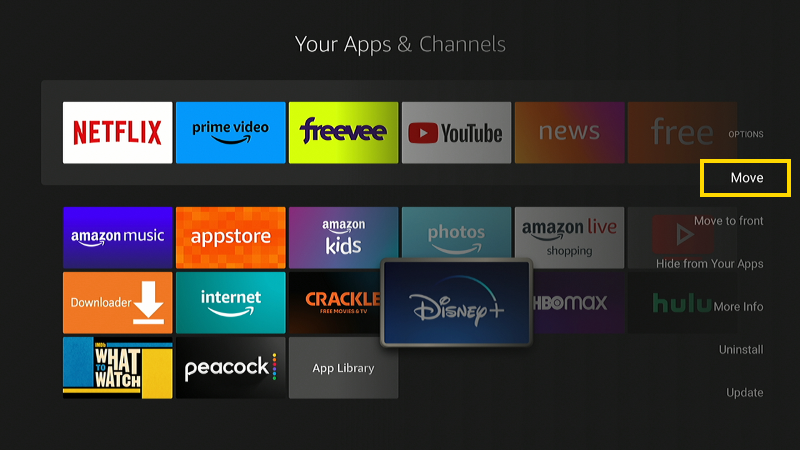
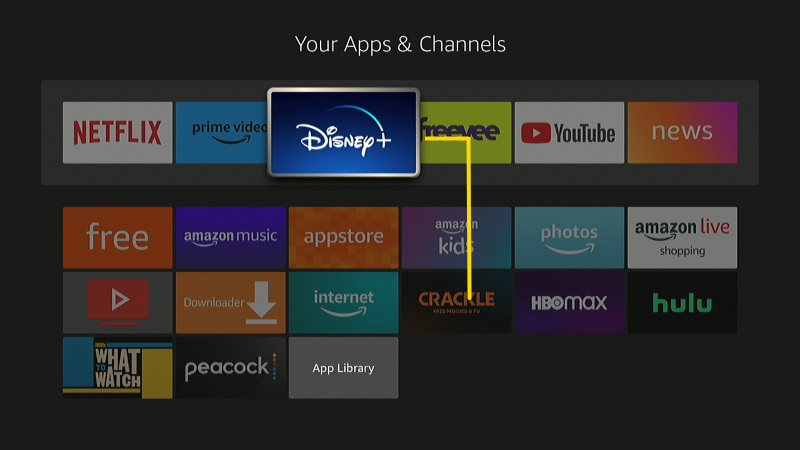
- Use the directional pad on the remote to move to app to the top bar. Once you have the app in a spot you like, press the Center/Select button on the remote.
Setting Favorite Live Channels
These steps will add a live streaming or antenna channels to your favorites.
- Press the Home button on the remote to get to the Home screen.
- Select the Live icon then select Guide to bring up the program guide.
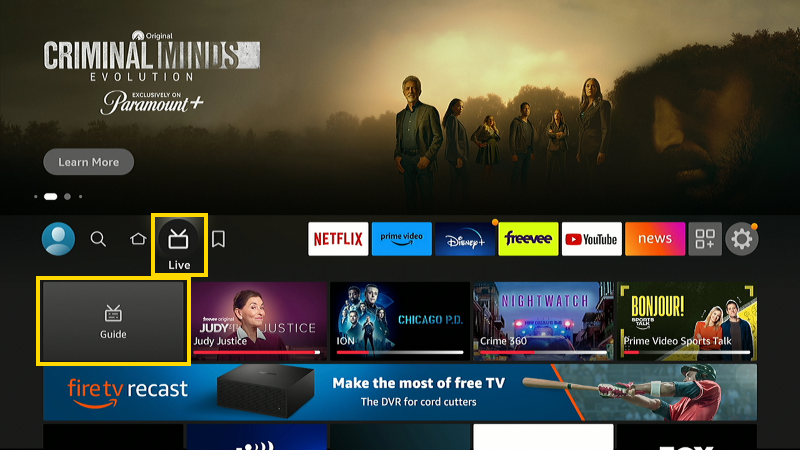
- Use the directional pad on the remote to highlight the channel you wish to add as a favorite. Do not open the channel. Just highlight it.
- Press the ☰ button on the remote. A menu will appear at the lower-left portion of the screen.
- Select Add to Favorite Channels.
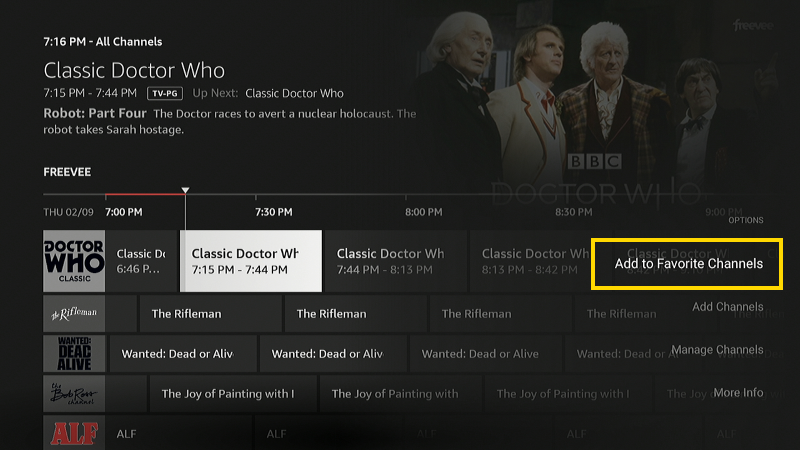
Channels marked as favorite appear at the top of the program guide and under Settings > Live TV > Favorite Channels.
posted by Amine @ July 03, 2023
0 Comments


0 Comments:
Post a Comment
Subscribe to Post Comments [Atom]
<< Home